
BOOKMARKS
- Bookmarks is the feature of all modern web browser that allow the user to save their favourite web page in a list.
- You can import or export bookmarks from one web browser to the another web browser.
- Google Chrome allow you to save your bookmarks on their cloud server and a user can sync them on multiple devices like PC, Notebook, Smartphone, Tablets etc.
This article will teach you "how to use the bookmark feature in Google Chrome?"
Contents:
- How to show Bookmarks in the Google Chrome?
- Adding a Bookmark in the Google Chrome.
- Edit a Bookmark in the Google Chrome.
- Delete a Bookmark in Google Chrome.
- Organise Bookmarks in Google Chrome.
-
5.1 "Create a folder" for different categories of bookmark.
5.2 Rearrange bookmarks on Bookmarks bar
How to Show Bookmarks bar in Google Chrome?
Step 1: Open the Google Chrome, click on top right side of address bar: three vertical dots.(Mouse hover will show "Customised and control Google Chrome").
Step 2: Now click on Bookmarks ➝ "Show bookmarks bar"
Note: You can use a keyboard shortcut Ctrl+Shift+B to hide or unhide bookmarks bar.
Adding a bookmark in Google Chrome
Step 1: Open a website in Google Chrome that you want to add to the Bookmarks Bar.
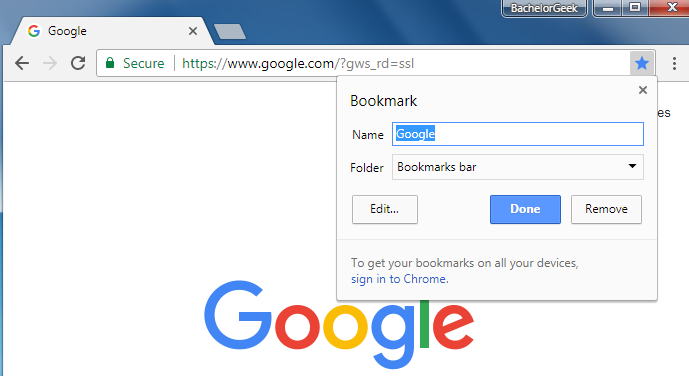
Step 2: "Click on top right of the address bar and click on STAR - ★ (on mouse hover it will show "Bookmark this page").
Step 3: A new message will be popup. Enter the "Name" of the Bookmark and specify the "Folder" path and click on "Done" button.
Note: You can add a bookmarks with a keyboard shortcut Ctrl + D. Now the bookmark will be shown on Bookmarks Bar when you open a "New tab".
Edit a bookmark in Google Chrome
Step 1: Open the Google Chrome, click on top right three vertical dots as shown in above picture (Mouse hover will show "Customised and control Google Chrome").
Step 2: Now click on Bookmarks ➝ Bookmark manager
Step 3: A new window of Bookmarks will be opened, click on the right of the bookmarks three vertical dots and then click "Edit". Enter new "Name" and "URL" of the bookmarks then click "Save" button.
Delete a bookmark in Google Chrome
Follow the Step 1 and Step 2 of "Edit a bookmark in Google Chrome" as mention above.
Step 3: Click on the right of the bookmark (three vertical icon), and click "Delete". Now bookmark is removed.
Organise bookmarks in Google Chrome.
"Create a folder" for different categories of bookmark
Follow the Step 1 and Step 2 of "Edit a bookmark in Google Chrome" as mention above.
Step 3: Click on the top right of three vertical dots and click on "Add new folder".
Step 4: Enter the "Name" of the folder and click on "Save" button.
Rearrange bookmarks on Bookmarks bar
Follow the Step 1 and Step 2 of "Edit a bookmark in Google Chrome" as mention above.Step 3: Drag a bookmark up down as per your choice. You can drag bookmark in a Folder on the left side of folder list.